Sunday, October 28, 2012

See Salary Online


Haryana Govt Employee Can See Salary Statement, GPF Statement, PRAN  etc online. 
If you are new user(i.e.have no user ID and Password) Then follow the following steps:
1.      Log on to intraharyana.nic.in
2.      Click on " New User Registration"
3.      A new window will open. Then fill the following information:
a.       Employee Type
b.      Date of Birth         
c.       Date of Joining     
d.      Salary Bank Account No
4.      After submitting the above information you will get User ID and Password on your given mobile phone.

If you already have User ID and Password, then log on to intraharyana.nic.in. A window as shown below will open. Then enter Your User ID and Password. Then click on login button.


A new window as shown below will open.


From here you can see Pay slip of any particular month, Annual Salary statement, Loan Payment status, Missing Cradit GPF, Previous GPF, Current GPF Detail, Service Book, ACR, Personal Detail etc.
From here you can also change your password.
Click Here: See your salary Detail

May we help you? 

If you have any problem click here 

Click Here : See your PRAN Statement

For Income Tax Calculating software: Download Income Tax Form Filling Software


Share:

Wednesday, October 10, 2012

How To Remove Number/Count from Archive in Blogger Dynamic Views

Here's the toturial on how to remove for Blogger Count (a Number) from Archive in Blogger Dynamic Views to look clean.

Befor you do this take to back up your Blogger Template.

First: Log in to your dashboard--> layout- -> Edit HTML

Two: Click on "Expand Widget Templates"

Three: Scroll down to where you see your "blog archive code:"

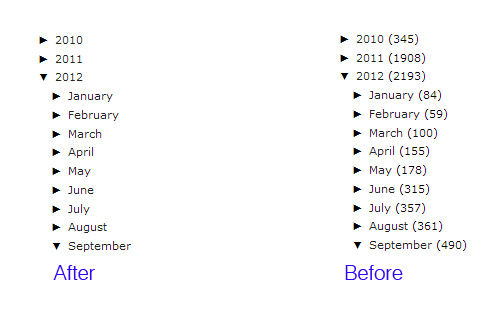
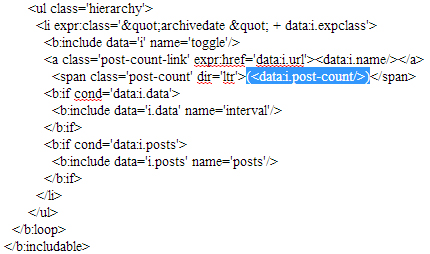
Note : Your blog archive code will look like this "After and Before."

How To Remove Number Count from Archive in Blogger Dynamic Views

The thing you need to look is the blogger html code:

(<data:i.post-count/>)

You need to find 3 blogger html code.

How To Remove Post Number From Blog Archive
Share:

Monday, October 8, 2012

How To Center Post Title in Blogger Dynamic Views

Here's the tutorial' please make first a backup copy.

Just open the Template tab -> Edit HTML button.

Then find (Ctrl + f) the following code:

How To Center Post Title in Blogger Dynamic Views

Then find (Ctrl + f) the following code:
]]>

and REPLACE it with the following one:
h3.post-title { text-align:center; }

]]>

Click the PREVIEW button and you'll see that the post title is now centered. After that save your template and enjoy :)


Share:

AdSense will stop serving feed adds on December 3.

AdSense for feeds is going away. AdSense will stop serving feed ads on December 3.

AdSense for feeds (AFF)

AdSense for feeds is going away

After carefully evaluating the product, we�ve decided to retire the AdSense for feeds product.

The process will happen in two phases and your account will be affected, depending on your usage of the product. To check whether you�re currently generating any revenue from AdSense for feeds, run your �Products� performance report and review the listed products for recent data for "AdSense for feeds."

AdSense will stop serving feed adds on December 3

via: support.google
Share:

Sunday, October 7, 2012

Add Links In Blogger Dynamic Views Comments

Here's the simple tips on how to add comments "href tag" blogger dynamic views.

In writing your comment, you find that you need to post a link. Just how does one go about doing that? Well, it is fairly simple. This is the code you drop into the comment box:

The href attribute specifies the link's destination:

<a href="http://alljectsart.blogspot.com/">Alljectsart</a>

Take a look at my href html comments below.

blogger dynamic views
Share:

Display Gadgets Blogger Pages or Blogger Post and Website link

Hello guys here's the steps on how Display Gadgets Blogger Pages or Blogger Post and website link codes.

Post Specific Gadgets In Your Blog

Step 1. You must first have the post published and then add the gadget as normal dont forget to add the name example "alljects gadget."

Once the gadget is added you can move to the next step.

Step 2. In your dashboard Click 'Layout' > 'Edit Html' > Tick the 'Expand widget templates' box

Step 3. Now you want to find the gadget in your template so you look for the title of your gadget or "alljects gadget" if you used that name.

(The easiest way to do this is to click 'CTRL and F' for a search bar to help find the code - for more info on this Click Here.)

Step 4. Once you find the gadget it will look similar to the code below you can see the title "alljects gadget", the code displayed here is the entire code for the gadget:

<b:widget id='HTML1' locked='false' title='alljects gadget' type='HTML'>
<b:includable id='main'>
<!-- only display title if it's non-empty -->
<b:if cond='data:title != &quot;&quot;'>
<h2 class='title'><data:title/></h2>
</b:if>
<div class='widget-content'>
<data:content/>
</div>

<b:include name='quickedit'/>
</b:includable>

Copy the code in blue below and add it to the positions as shown:

<b:if cond='data:blog.url == "PUT-THE-POST-URL-HERE"'>

<b:widget id='HTML1' locked='false' title='alljects gadget' type='HTML'>
<b:includable id='main'>
<b:if cond='data:blog.url == "http://alljectsart.blogspot.com/2012/10/display-gadgets-blogger-pages-or-blogger-post-and-website-link.html"'>
<!-- only display title if it's non-empty -->
<b:if cond='data:title != &quot;&quot;'>
<h2 class='title'><data:title/></h2>
</b:if>
<div class='widget-content'>
<data:content/>
</div>

<b:include name='quickedit'/>
</b:if>
</b:includable>

Note you need Converts special characters to HTML entities. here

If you ever have a question or a suggestion for a post you can use the comments or the 'Contact me' form I'm always looking for suggestions.

How to Display Blogger Gadgets/Widgets in Labels - Homepage
Share:

Fastest Steps to Creat Blogger XML Sitemap

Here's the fastest way on how to create an xml sitemap for Blogger/Blogspot.

ctrlq.org XML Sitemap for Blogger is the answer, thanks to labnol.org

The steps is just put the link of your blogger site to ctrlq.org

example: http://alljectsart.blogspot.com

XML Sitemaps help search engines better index your blog or website. Sitemaps are supported by all major search engines including Google, Bing and Yahoo.

With the Blogger Sitemap Generator, you will be able to create a valid and complete XML sitemap for your blog. Just type the full web address (URL) of your blogger blog, press the Create button and then add the sitemap to Blogger.

The tool can generate Google XML Sitemap for Blogger hosted blogs (like labnol.blogspot.com) as well as self-hosted Blogger blogs (like postsecret.com) that run on Blogger.com but with a custom domain.

Internally, the tool parses the default XML sitemap to determine the total number of blog posts in your blog and splits them into multiple sitemaps each having 500 entries.


ctrlq.org XML Sitemap for Blogger, labnol.org
Share:

How to Active: Lightbox Image Viewer for Blogger

Here's oh how to activate light box for blogger.

Check out the very useful tutorial.

Blogger has recently added a new feature for image light box and photo light box on the blogger posts.

With the new Light-box feature, the images can be clicked and be displayed with a darkened background with in the smooth way.

About light box for blogger:

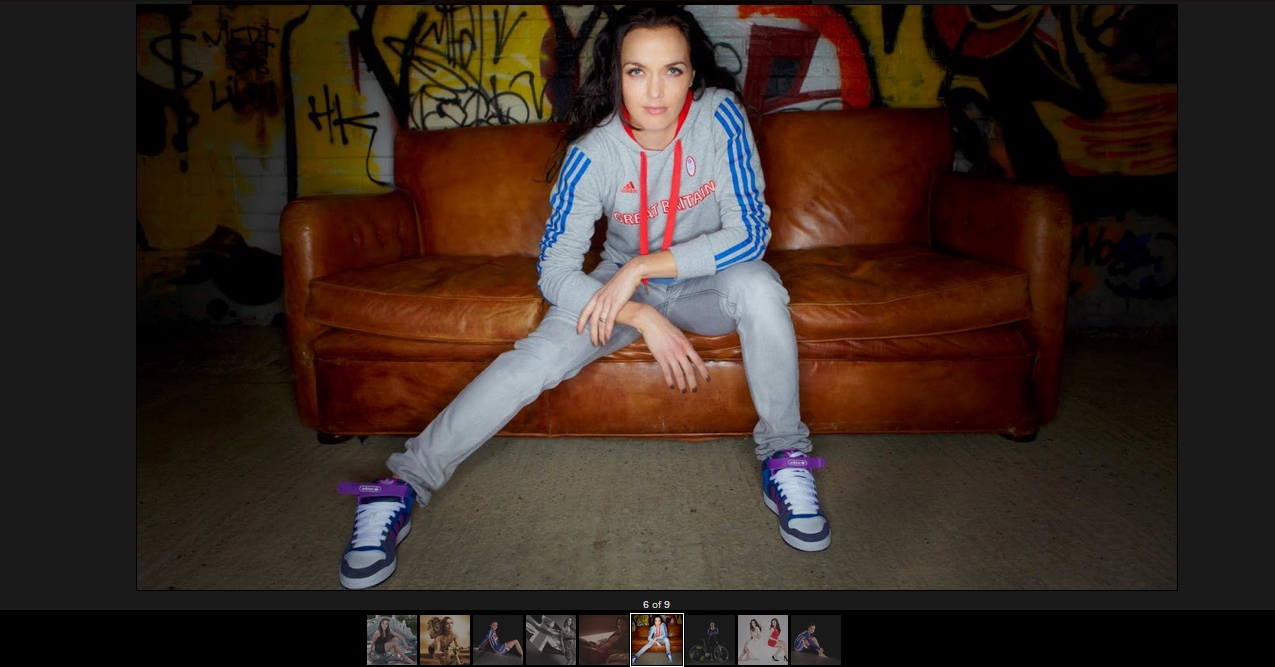
When clicked, your images will open in an overlay on top of your blog. If your post has multiple images, they will appear as thumbnails along the bottom.

How to Active: Lightbox Image Viewer for Blogger

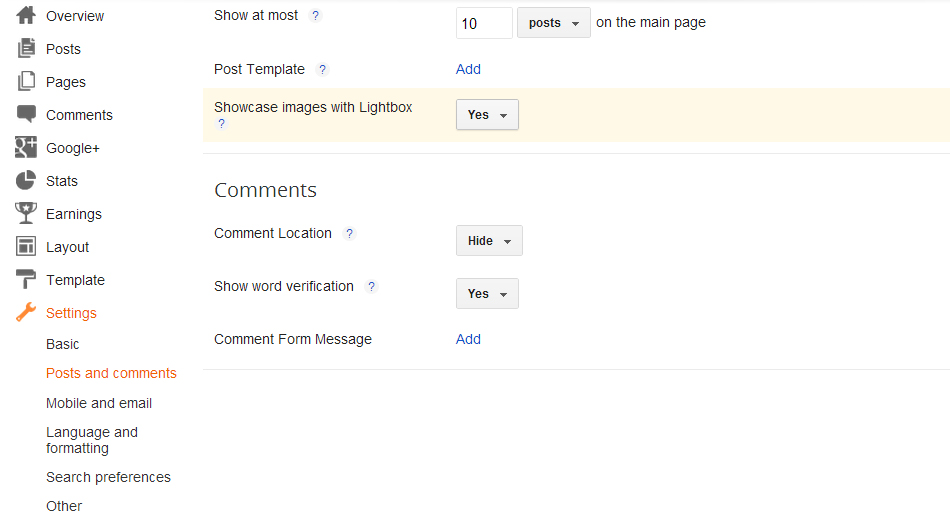
How to configure "images showcase with Lightbox".

Currently, Blogger blogs in default have "Open images with Lightbox" setting enabled. Go to Dashboard > Settings > Formatting.

Then you'll see the setting mode for Lightbox. Either yes or no.

images showcase with lightbox

It could seem rather annoying if readers unintentionally click on it. But if your blog is a photography blog, it's definitely suitable.

Have you try this?
Share: