Showing posts with label Facebook. Show all posts

Thursday, October 6, 2016

How to fix the error: not a valid facebook page url?

How to fix the error not a valid facebook page url
So, recently I saw an error on a Facebook Page embedded to one of my blog. The error was:
error: not a valid Facebook page url
I tried Google for solutions but I couldn't find a relevant solution. And I realized many people are also facing the same issue with their Facebook Page integrated on their websites and blogs. Anyway, since I could not find a relevant solution to this Facebook error, I decided to investigate. And I found the cause of the error and thus, a solution as well.

In this post, we will check the cause of the error "error: not a valid Facebook page URL " and how to solve it.
Read more �
Share:

Saturday, August 20, 2016

How to attach or add photo to Facebook comments on blogs and websites?

How to attach or add photo to Facebook comments on blogs and websites
Facebook comments is a great interaction tool to add to your blog or website. The sheer number of Facebook users today is something that bloggers should tap and not only that, it is very convenient for the user also to comment using existing Facebook account he or she is logged into. So, if you haven't integrated Facebook comments, then do it soon.

How to add photo to Facebook comments on blogs and websites?
Read more �
Share:

Saturday, May 21, 2016

How to create Facebook app and add Facebook page like box in Blogger or Website?

How to create Facebook app and add Facebook page like box in Blogger or Website?
Adding Facebook Page Box using Facebook Social Plugins helps visitors to like your Facebook Page directly from the website and also see your Facebook Page posts from the website itself without the need to open Facebook.

Check out this short video tutorial explaining how to create a Facebook app and add Facebook Page Like Box on Blogger. The same method can also be used to add Facebook Page box on any website.

Share:

Sunday, April 3, 2016

How to add Facebook Page widget on Blogger blog or website?

For those who blog and also maintain Facebook Pages, it may be a good idea to add Facebook Page Widget to Blogger blog or website, so that visitors can know, like the page, share and easily see contents posted on the page without the need to visit Facebook. They could also visit your Facebook page easily from the blog. Facebook provides various Social Plugins to easily integrate with any kind of website.

Check out a tutorial video: How to create Facebook App and add Facebook page box to Blogger/Website?

How to add Facebook Page on your Blogger blog or website?

Read more �
Share:

Thursday, March 31, 2016

How to Fix "Error Parsing XML" in Blogger When Adding Facebook Like Button, Facebook Comment, Facebook Page and other Social Plugins?

If you are looking for a way to integrate Facebook Social Plugins - Facebook Like, Share, Comment, Page -on Blogger, check out my previous post "How to add Facebook comment box to blogger?". The post is about adding Facebook Comment in Blogger but the process is the same for other Social Plugins. In this post, we will see how to resolve the XML Parsing error that we get when we integrate Facebook Plugins in Blogger.

How to resolve the XML Parsing error when integrating Facebook Social Plugins in Blogger?

Read more �
Share:

Thursday, March 10, 2016

How to add Facebook Comments box on your Blogger blog site?


In my earlier blog post, I had posted on "How to add Facebook comment to blogger? (New Blogger Template)" including tutorial videos describing the steps. The steps to create a Facebook App id and integrating it with Blogger blog is still the same, but since Facebook Developer interface has changed a bit and even the code, I am writing a new post here to show how to add Facebook Comments box on a Blogger blog site based on the latest Facebook Developer code [as on March 2016]. The code still works but new users may be confused. So in this post we'll be using the Facebook Comment box code with a slight modification only from Facebook developers page. Unlike, the previous post, we don't need to use the Facebook App ID in this one.

How to add Facebook Comments box on your Blogger blog site?
Read more �
Share:

Friday, December 18, 2015

How to switch account or remove a Facebook account from Facebook Messenger app?

Facebook Messenger, as the name indicate, is the messenger app which opens Facebook messages outside the usual Facebook app. When you open Facebook Messenger app after installing on your phone, it detects your Facebook account from the Facebook app and asks you if you want to login with that account. Here, you have the option to switch account and login as another. Usually, you would login with the same account as the Facebook app.

This account switching is however not available from within the app after you are logged in.  There is no option to log out the current user from the Facebook messenger app and log in with another one. So if you want to switch accounts later or logout or remove the account from the messenger app, it is not possible from the Facebook  Messenger app. This so as of today, 28th December 2015.

How to switch account or remove a Facebook account from Facebook Messenger app?

So if you want to switch Facebook messenger user account to another account or may be remove/logout the current account, you can do so by clearing the Facebook Messenger app's data from applications manager on your phone.

1. Open settings on your phone
2. Locate Applications Manager or Apps
3. Find Messenger and tap to open
4. Look for "Clear Data" and tap on it to clear Facebook Messenger app data
5. Facebook Messenger app is now cleared and back to the state when you first installed the Facebook Messenger app.

When you open the Facebook Messenger app, tap "switch account" to login with another Facebook account.
Share:

Tuesday, November 4, 2014

How To Create RSS Feed from any Facebook Page

RSS (Rich Site Summary); originally RDF Site Summary; often called Really Simple Syndication, uses a family of standard web feed formats to publish frequently updated information: blog entries, news headlines, audio, video. An RSS document (called "feed", "web feed", or "channel") includes full or summarized text, and metadata, like publishing date and author's name.

RSS feeds enable publishers to syndicate data automatically. A standard XML file format ensures compatibility with many different machines/programs. RSS feeds also benefit users who want to receive timely updates from favourite websites or to aggregate data from many sites.

Facebook Page

Here's a way on How To Create RSS Feed from any Facebook Page:

The base url string for the RSS feed:
http://www.facebook.com/feeds/page.php?format=rss20&id=

The Facebook ID of the page:
Find the Facebook (Page) ID
Add the ID at the end of the url string and you have a complete working RSS feed!
For Inuit Art Zone the RSS feed would be:
http://www.facebook.com/feeds/page.php?format=rss20&id=219789634717739

With this website: findmyfacebookid.com you can find the PAGE id.
Share:

Thursday, October 4, 2012

Facebook Hits 1 Billion Active Users

Facebook has officially reached one billion active users, and unveils new "Facebook Commercial Video."

In an official blog post, he writes:

This morning, there are more than one billion people using Facebook actively each month. If you�re reading this: thank you for giving me and my little team the honor of serving you.

Helping a billion people connect is amazing, humbling and by far the thing I am most proud of in my life. I am committed to working every day to make Facebook better for you, and hopefully together one day we will be able to connect the rest of the world too.

Facebook Hits 1 Billion Active Users
Share:

Wednesday, August 15, 2012

Facebook Your account is temporarily Locked - Photo

Why this message appeared on my Facebook Account? "Facebook Your account is temporarily Locked." How To Open?

We don't recognize the device you're using. Please answer a few securtiy question to keep your account safe.

Facebook Your account is temporarily Locked.jpg, https://www.facebook.com/checkpoint/
Reason:

A) May be Facebook making an improvement in the database and the account get "Locked" are stored on. During this time,it may not be able to gain access to the account. It may last for an hours. If this doesn't work, try submitting Facebook form.

B) May be Facebook has detected suspicious activity and has temporarily suspended due to security precaution.

C) Randomly adding large number of friends and sending continuously message to your friend list. Due to which unknown friend has detected as a spam or reported abuse. If in a bulk large number of people report abuse or spam then it may also get locked temporarily.

D) May be randomly using different devices to open a Facebook account.
Share:

Wednesday, August 8, 2012

Facebook Page - 5 Category Owners and new Roles

Here's the Facebook Page Owners: 5 New Admin Roles now available on Facebook!!

Learn now about the NEW admin roles:

Role: Manager
Managers can manage admin roles, send messages and create posts as the Page, create ads, and view insights.

Role: Content Creator
Content Creators can edit the Page, send messages and create posts as the Page, create ads, and view insights.

Role: Moderator
Moderators can respond to and delete comments on the Page, send messages as the Page, create ads, and view insights.

Role: Advertiser
Advertisers can create ads and view insights.

Role: Insights Analyst
Insights Analysts can view insights.
This is great news because finally you wont have to worry about someone from an agency deleting your Page. Make sure you change the rights accordingly!
Share:

Thursday, June 7, 2012

Floating Facebook Like Box for Website/Blogger

Here's the tutorial for Floating Facebook Like Box for Blogger. I already see this Floating Facebook Likes in WordPress and Joomla! platform. see the DEMO here

Adding Jquery Plugin

Before you do this tutorial its better to back-up first, template.

1. Sign in to Blogger
2. Go to your Dashboard>Design>Edit HTML
3. Add this code above the closing </head> tag in your HTML file:

<script src="https://ajax.googleapis.com/ajax/libs/jquery/1.6.1/jquery.min.js" type="text/javascript">
</script>

Adding Widget Code

1. Go to Design>Add a Gadget>HTML/JavaScript
2. Add This code to HTML/JavaScript Widget

<script type="text/javascript">
//<!--
$(document).ready(function() {$(".floatinglikebox").hover(function() {$(this).stop().animate({right: "0"}, "medium");}, function() {$(this).stop().animate({right: "-250"}, "medium");}, 500);});
//-->
</script>
<style type="text/css">
.floatinglikebox{background: url("https://blogger.googleusercontent.com/img/b/R29vZ2xl/AVvXsEjbFwh-wKX84E7b2hO9f9yjYGxp4Oom60bW7m-dZtnULW98g2V68yrfLP7-NFwtnEUJtslLfDaVrpciTnN9hsZVswm3hzXMIWg9RIO7-PZQoY4oxk5x-EAVEq6v5T8kuMe_aRgxRLBt6t0/s1600/floatingfb.png") no-repeat scroll left center transparent !important;display: block;float: right;height: 270px;padding: 0 5px 0 40px;width: 245px;z-index: 99999;position:fixed;right:-250px;top:20%;}
.floatinglikebox div{border:none;position:relative;display:block;}
.floatinglikebox span{bottom: 10px;font: 10px tahoma,verdana,arial,sans-serif;position: absolute;right: 6px;text-align: right;z-index: 99999;}
.floatinglikebox span a{color: #808080;text-decoration:none;}
.floatinglikebox span a:hover{text-decoration:underline;}
</style><div class="floatinglikebox" style=""><div><iframe src="//www.facebook.com/plugins/likebox.php?href=http%3A%2F%2Fwww.facebook.com%2F
LiveinManila&amp;width=251&amp;height=270&amp;colorscheme=light&amp;show_faces=true&amp;border_color=%23cccccc&amp;stream=false&amp;header=false&amp;appId=159468740772399" scrolling="no" frameborder="0" style="border:none; overflow:hidden; width:251px; height:270px; background:#fff;" allowtransparency="true"></iframe><span><a href="http://alljectsart.blogspot.com/2012/06/floating-facebook-like-box-for.html" target="_blank">+Get This!</a></span></div></div>

Replace "LiveinManila", with your Facebook fan page URL.
Share:

facebook-id-finder

How can I find out someones Facebook ID?

You can use Facebook's Friend Finder by typing in their name.

In order to use our Facebook ID Finder, you don't have to be logged in to your Facebook account.

All you need to do is enter your Facebook Profile username or Page in the top input field, and in a second you will find all the information you need.


Share:

Tuesday, March 20, 2012

Answer: Individual Facebook members can connect to a maximum of 5000 friends and Pages

Individual Facebook members can connect to a maximum of 5000 friends and Pages. To do this action, you'll need to remove a friend or unlike a Page you're already connected to.

To unfriend someone:

1.Go to that person's profile (timeline)

2.Hover over the Friends box at the top of their profile (timeline)

3.Click Unfriend

Note: If you choose to unfriend someone, you will be removed from that person's friends list as well. If you want to be friends with this person again, you'll need to send a new friend request.

Answer: Individual Facebook members can connect to a maximum of 5000 friends and Pages

manage your settings for each app you�ve authorized:

1.Click the at the top right corner of Facebook and click Account Settings.

2.From the menu in the left column, select Apps.

3.Select the app you want by clicking on the app's name or the edit link

4.Choose an audience with the audience selector from the App activity privacy section. That app can only publish stories to people within the audience you choose.

To manage your general settings for apps and websites:

1.Click the at the top left corner of Facebook and pick Privacy Settings.

2.Under the Apps and Websites heading, click Edit settings. From here, you can turn off all platform apps, control what information is open to your friends through apps and websites they use, and more.
Source(s):
Face Book Help Center
Share:

Wednesday, March 7, 2012

Sunday, July 17, 2011

Harper Seven Beckham Picture First seen by Facebook and Twitter Users Online

The photo of the fourth child of David and Victoria Beckham had been released by David on his official Facebook page today July 17, 2011. The former Manchester United star David Beckham had taken the photo of his youngest baby girl while the two most important girls of his life was sleeping..
Facebook, Twitter, First picture of Harper Seven Beckham shared Via Twitter & Facebook, birth injury lawyers bronx, Poster, Wallpaper, image, photo Victoria Beckham shares first picture of Harper Seven with David Beckham / Victoria Beckham's Twitter
In just an hour of posting the updated photo of his wife and his daughter Harper Seven Beckham had already garnered a total of more than 79,771 likes and 12,449 comments. David Beckham had more than 12.5 million fans in Facebook, considered as one of the most popular athlete and most recognized personality on the social networking site.

According to David Beckham the name of their child was taken from the name of the favorite author of his wife, the former Spice Girls members Posh or Victoria Beckham. The author mention was Harper Lee author of the favorite book of Victoria entitled �To Kill A Mockingbird.�
Share:

Saturday, July 16, 2011

Customized Facebook Button Code

Google To Retire Blogger & Picasa Brands in Google+ Push, Blogger & Picasa Brands ends in 2011, Google+ Push Birth, logo, picture, image, poster, dying, finish, shut down, Google Blogs, Google Photos, Born FB Share
This Facebook tutorial will show you how to add a Facebook share button to every blog post in Blogger, WordPress, Website. You will have an option whether to include a counter, icon, button count or not. The counter will show a live count of how many times a post has been shared -a way to gauge the post popularity.

This is the tutorial:

Note: Save for your Back-Up
A. Go to Dashboard > Design > Edit HTML.
B. Back up your template.
C. Tick the Expand Widget Templates check box on top right of the HTML window.
D. Find the following code in your HTML, this is the code for your post content:

<data:post.body/>
E. Paste the Facebook button code immediately below (after) it:
<!-- Facebook share button Start -->
<b:if cond='data:blog.pageType != &quot;static_page&quot;'>
<div style='float:left;padding:5px 5px 5px 0;'>
<a expr:share_url='data:post.url' href='http://www.facebook.com/sharer.php' name='fb_share' type='botton_count'>Share</a><script src='http://static.ak.fbcdn.net/connect.php/js/FB.Share' type='text/javascript'></script>
</div>
</b:if>
<!-- Facebook share button End -->
F. Configure button
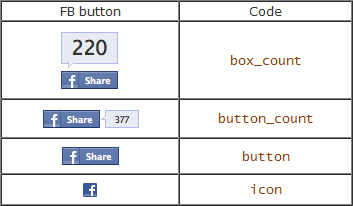
Choose the type of button by replacing the value of type attribute (in line 4) with the corresponding code below.
Add Facebook Share Button With Counter, Customized Facebook Button Code, Twitter
Note: The counter will only show up after the count reaches 3.
G. Button repositioning
The steps above positioned the button on bottom left of each post. You can change the positioning if you like:
   Position it on top of post
   Place the button code before (instead of after) <data:post.body/>.
   Position it on the right
Change the float in line 3 from left to right.
H. Displaying button on static pages
To also display the button in static pages, remove the conditional tag -code line 2 and 6.
I. Preview, you should see the button appear at the end each post.
J. If you like what you see then Save.
Share: